
Annual Budget Template for Google Sheets and Excel
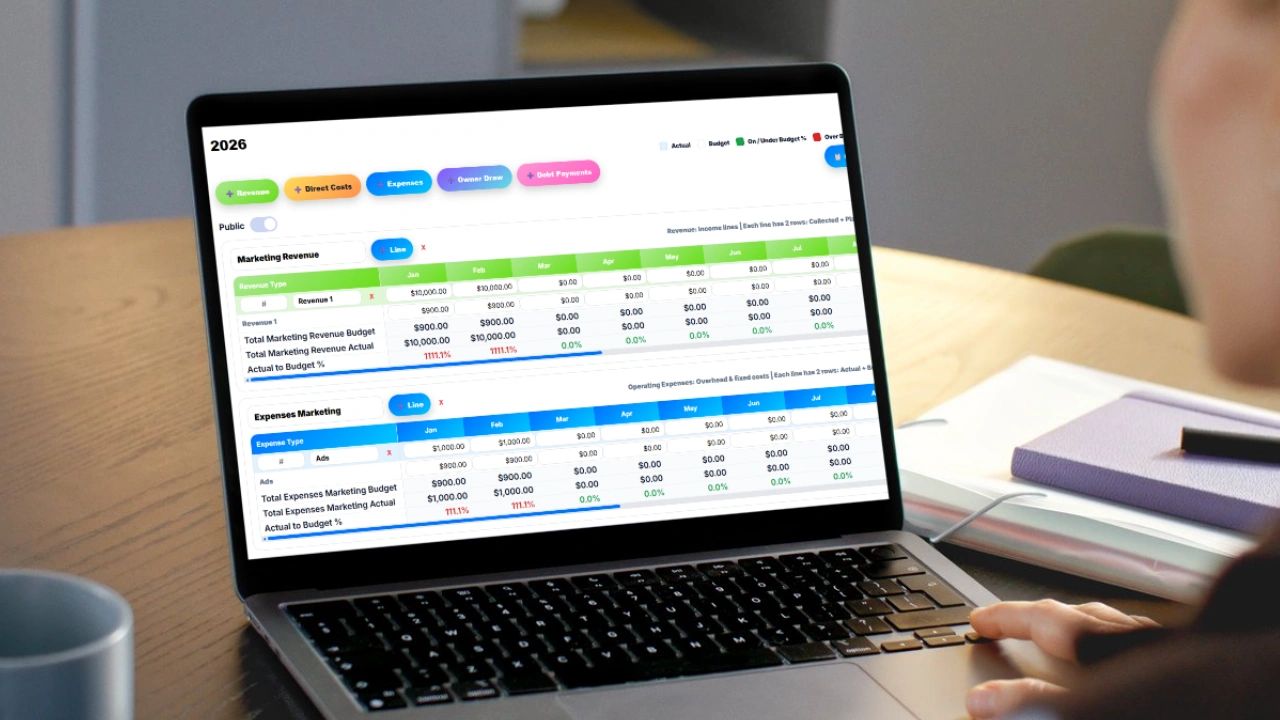
Annual budget templates give you a full-year view of income and expenses so you can plan ahead, track what actually happens, and fix problems before they grow. Build yours with the free annual budget planner below or copy the ready-made Google Sheets and Excel template with working formulas, then use this guide to keep it accurate all year.
Managing money without a clear system is how small leaks turn into big problems. Whether you run a business or a household, a structured budget keeps every dollar visible, organized, and actionable, and it turns guessing into decisions.
Free Annual Budget Planner
Free Annual Budget Planner
Add each income source and expense with its monthly amount. The planner totals your year, shows your monthly and annual net, and copies a full 12-month budget with formulas into Excel or Google Sheets.
| Category | Type | Monthly | Annual | % of Income |
|---|
What Is an Annual Budget Template?
An annual budget template is a spreadsheet that plans your expected income and expenses across all 12 months of the year. A strong template does three things: it forecasts what you expect to earn and spend, it tracks what actually happened, and it calculates the difference so you can make better decisions. Most budgets fail at the last step. People track, but they never compare the plan with reality and adjust.
Free Annual Budget Template for Google Sheets and Excel
This template includes 10 sample categories, all 12 months, row totals, and monthly totals for income, expenses, savings, and net balance, all built with working formulas. Click the button, paste into cell A1, and replace the sample numbers with your own.
| Category | Type | Jan | Feb | Mar | ... | Total |
|---|---|---|---|---|---|---|
| Sales revenue | Income | $20,000 | $20,000 | $20,000 | ... | $240,000 |
| Service revenue | Income | $5,000 | $5,000 | $5,000 | ... | $60,000 |
| Rent | Fixed Expense | $3,000 | $3,000 | $3,000 | ... | $36,000 |
| Insurance | Fixed Expense | $400 | $400 | $400 | ... | $4,800 |
| Software subscriptions | Fixed Expense | $350 | $350 | $350 | ... | $4,200 |
| Payroll | Fixed Expense | $12,000 | $12,000 | $12,000 | ... | $144,000 |
| Marketing | Variable Expense | $1,500 | $1,500 | $2,000 | ... | $23,300 |
| Utilities | Variable Expense | $450 | $450 | $400 | ... | $4,900 |
| Supplies | Variable Expense | $600 | $600 | $600 | ... | $7,200 |
| Savings and reserves | Savings | $1,000 | $1,000 | $1,000 | ... | $12,000 |
Key Sections Every Annual Budget Needs
Income
List every revenue source, such as product sales, services, recurring contracts, or salary and side income for a household. Give each a projected amount per month, and add an actual column once the month closes.
Fixed Expenses
Fixed expenses stay about the same each month: rent or mortgage, insurance, software subscriptions, loan payments, and base payroll. They are predictable, so they should be easy to plan.
Variable Expenses
Variable expenses change with activity: marketing, utilities, supplies, travel, contractors, and groceries at home. This is where most budgets break, so watch the trend over several months rather than chasing a perfect number.
Savings and Reserves
If you do not plan savings, it will not happen. Budget an amount every month for an emergency fund, tax reserve, business reinvestment, or retirement, and treat it like a bill.
Monthly Totals and Net Balance
Every month should automatically show total income, total expenses, savings, and the net balance. That net is your monthly reality check.
Annual Summary
A summary at the top or on its own tab shows total income, total expenses, total savings, and net for the year, so you can see the big picture at a glance.
Budget Categories for Businesses and Households
| Type | Business examples | Household examples |
|---|---|---|
| Income | Product sales, services, retainers, other income | Salary, side income, investment income |
| Fixed expenses | Rent, insurance, software, payroll, loan payments | Rent or mortgage, insurance, phone, subscriptions |
| Variable expenses | Marketing, supplies, utilities, travel, contractors | Groceries, utilities, fuel, dining, entertainment |
| Savings | Cash reserve, tax reserve, equipment fund | Emergency fund, retirement, vacation fund |
How to Build an Annual Budget Step by Step
- Gather last year's numbers. Pull bank statements, your profit and loss statement, or accounting reports to see what you actually earned and spent.
- List every income source. Project each one month by month, including seasonal highs and lows.
- List fixed expenses. These are the easiest to plan. Note any contracts or rates that will change during the year.
- Estimate variable expenses. Use last year's average as a starting point and adjust for plans, such as a bigger marketing push in the fall.
- Set savings targets. Decide what you will set aside each month and add it as its own line.
- Check the net. If any month is negative, adjust spending, timing, or savings until the plan works.
- Add actuals every month. Record what really happened and compare it with the plan.
Budget Formulas for Google Sheets and Excel
These formulas power the template. Adjust the ranges to match your sheet.
Total for a Row
=SUM(C2:N2)
Total Income for a Month
Adds every row labeled Income in column B for the month in column C:
=SUMIF($B$2:$B$11,"Income",C2:C11)
Total Expenses for a Month
The asterisk matches both Fixed Expense and Variable Expense:
=SUMIF($B$2:$B$11,"*Expense",C2:C11)
Budget vs. Actual Variance
If the budget is in B2 and the actual is in C2, this shows the difference in dollars and as a percentage:
=C2-B2
=IFERROR((C2-B2)/B2,0)
Add conditional formatting so positive net balances show green and negative ones show red. You will see problem months instantly without reading every number.
Budget vs. Actual: Where the Learning Happens
A budget is a plan. Actuals are what happened. The variance between them tells you where your assumptions were wrong. Review variances monthly and ask why each large one happened. A one-time repair is not a trend, but marketing costs that run 20% over budget three months in a row mean the plan needs to change. Update the forecast for the rest of the year based on what you learn.
Budgeting Methods to Consider
Incremental budgeting starts from last year's numbers and adjusts them up or down. It is fast and works well for stable businesses. Zero-based budgeting starts every line at zero and makes you justify each expense. It takes more time but uncovers spending that no longer earns its keep. Many small businesses use incremental budgeting most years and do a zero-based review every few years or when margins get tight.
Common Budgeting Mistakes to Avoid
- Overcomplicating the sheet. If it is too hard to update, you will stop using it.
- Not updating regularly. A budget only helps if it reflects reality. Update actuals every month.
- Ignoring small expenses. Small recurring charges add up faster than you think.
- Skipping the comparison. Planned vs. actual is where the insight is.
- Forgetting seasonality. Spreading annual costs evenly hides the months when cash gets tight.
Google Sheets vs. Excel for Budgeting
Choose Google Sheets if you want free access from anywhere and easy sharing with a partner, bookkeeper, or team. Choose Excel if you want offline access, more control, or advanced features. The structure and formulas in this template work the same in both, so you can move between them anytime.
When a Spreadsheet Budget Is Not Enough
Spreadsheets are a great starting point, but as a business grows the numbers live in too many places: employees track time separately, expenses are tied to projects, revenue comes from many clients, and invoicing is disconnected from the budget. Updoot business budgeting connects budgets to time tracking, project costs, payroll reporting, and invoicing, so your numbers update from real activity instead of manual entry.
Final Thought
A budget is not about restriction. It is about control. Start simple, update it every month, compare plan with actual, and upgrade your system when your business outgrows the spreadsheet.
Opens in Google Drive. View and download for free.
Related Reading
What Is in a Typical Business Budget? →
Frequently Asked Questions About Annual Budget Templates
What is an annual budget template?
An annual budget template is a spreadsheet that plans income and expenses for all 12 months of the year, tracks actual results, and calculates the difference so you can adjust.
What sections should an annual budget include?
Include income, fixed expenses, variable expenses, savings, monthly totals with a net balance, and an annual summary. Add actual columns so you can compare the plan with what happened.
How do I make a budget in Google Sheets?
List categories in column A, types in column B, and months in columns C through N. Use =SUM for row totals and =SUMIF to total income and expenses by type for each month. Or copy the free template on this page and paste it into cell A1.
What is the difference between fixed and variable expenses?
Fixed expenses stay about the same each month, such as rent, insurance, and subscriptions. Variable expenses change with activity, such as marketing, utilities, supplies, and travel.
How often should I update my budget?
Update actuals at least once a month, review variances, and adjust the forecast for the rest of the year based on what you learn.
What is budget variance?
Budget variance is the difference between what you planned and what actually happened. Calculate it as actual minus budget, or as a percentage with (actual minus budget) divided by budget.
Should I use Google Sheets or Excel for my budget?
Use Google Sheets for free access anywhere and easy sharing. Use Excel for offline work and advanced features. The template on this page works in both.