
Time Clock for Desktop: What to Look For and How It Works
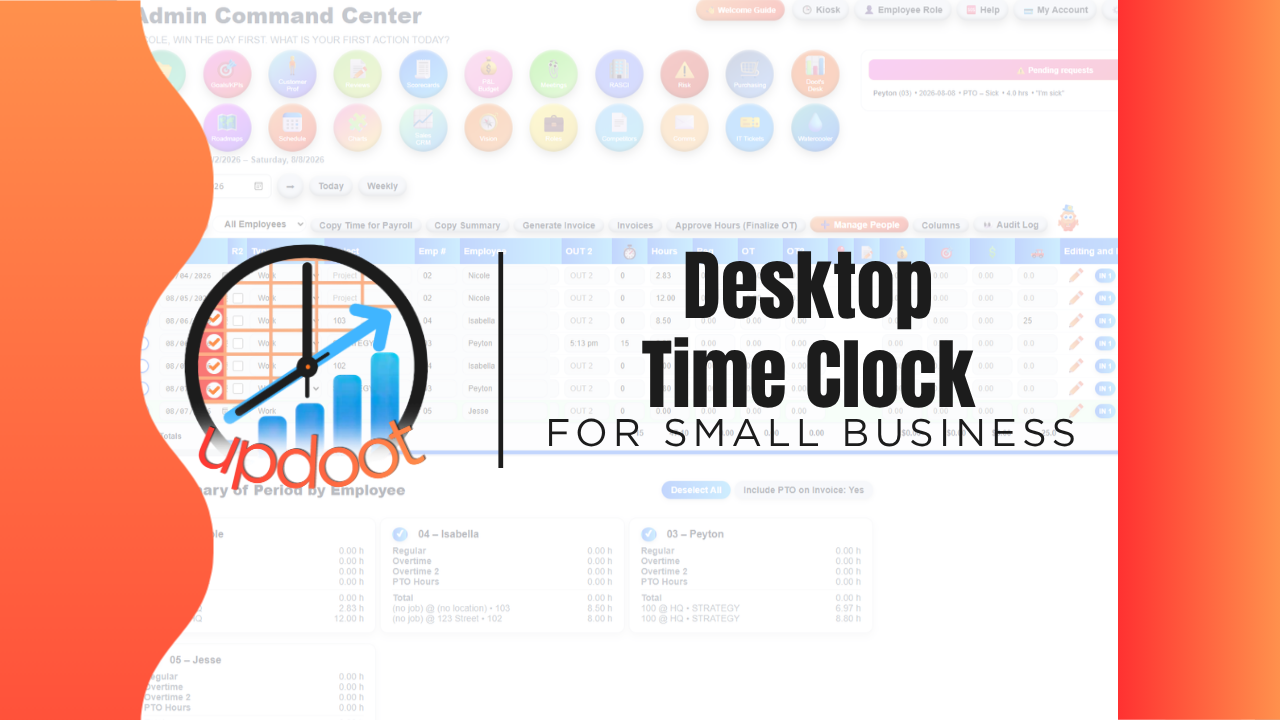
Most time clock marketing leads with GPS and mobile apps, which makes sense for field crews, but it leaves out a large chunk of the workforce: people who sit at a desk all day, whether that's in an office, a call center, a front desk, or a home office. For that group, a phone-based GPS punch is the wrong tool, and a shared kiosk usually isn't practical either. What they need is a time clock for desktop: something that works from the computer they're already sitting at.
This guide covers what a desktop time clock actually is, how it differs from mobile and kiosk options, what to look for before you set one up, and a free interactive tool to compare the three punch methods side by side.
On this page
- What is a desktop time clock?
- Who actually needs a desktop time clock
- Core features to look for
- Browser-based vs. installed desktop apps
- How desktop time clocks verify location
- Overtime, breaks, and payroll export
- Interactive comparison: desktop vs. mobile vs. kiosk
- Common setup mistakes
- How Updoot's desktop time clock works
- Frequently asked questions
What Is a Desktop Time Clock?
A desktop time clock is time tracking software an employee uses to clock in and out from a computer, most commonly through a web browser rather than a downloaded app. Instead of pulling out a phone or walking to a shared kiosk, the employee opens a browser tab, logs in, and punches in for the day from the same machine they're about to start working on.
This sounds like a small distinction from mobile time tracking, but it changes several things in practice. There's no app to install or keep updated on a personal device. There's no GPS hardware to rely on, since most desktop computers don't have it. And the punch happens on the same device the employee is already using for their actual work, which tends to mean fewer missed punches simply because opening a browser tab is a lower-friction action than remembering to open a separate phone app.
Who Actually Needs a Desktop Time Clock
Desktop time clocks fit any role tied to a fixed workstation rather than a moving location. Office staff, administrative and accounting teams, customer support and call center employees, front desk and reception roles, and remote employees working from a home office all fall into this category. None of these roles benefit from GPS verification, since the whole point of GPS is confirming where someone physically is, and these employees are already sitting at a known desk.
Businesses that run a mixed team, some employees at desks and others out in the field, typically end up using a desktop time clock for the office group and a mobile GPS clock for the field group, with both feeding into the same payroll system. Trying to force field employees onto a desktop clock or office employees onto a GPS mobile app usually creates friction neither group needs.
Core Features to Look For in Desktop Time Clock Software
No installation required
A browser-based desktop time clock should work the moment an employee logs into a URL, on any computer, without IT having to push an installer to every machine. This matters especially for businesses with a mix of company-owned and personal devices, or Chromebooks that can't run every desktop app.
Individual employee logins
Every punch should be tied to a specific employee's own login, not a shared terminal login. This is the first line of defense against buddy punching on a desktop clock, since anyone with access to the credentials could otherwise punch in on someone else's behalf.
Punch by job or project
For desk-based roles that split time across clients, projects, or departments, the ability to select what they're clocking into, not just clock in generically, turns a basic timesheet into something usable for job costing or client billing.
An audit trail on edits
Desktop punches, like any punch, sometimes need correcting: a forgotten clock-out, a late clock-in. Look for a system that logs who made any edit and when, rather than allowing silent changes to a timesheet.
A live dashboard
A manager should be able to see who is currently clocked in from a single dashboard view without walking the floor or messaging each employee individually, especially useful for remote and hybrid teams where there's no floor to walk.
Browser-Based vs. Installed Desktop Apps
Most modern desktop time clocks run entirely in the browser, and for most businesses this is the better option. It requires no IT deployment, works identically across Windows, Mac, and Chromebook, and updates automatically without anyone needing to reinstall anything. The tradeoff is that it requires an internet connection at the moment of punching, which is rarely an issue for office-based roles.
A smaller number of vendors offer installed desktop applications, which can support offline punching that syncs once connectivity returns, and sometimes tighter integration with system-level features like idle detection. For the vast majority of office and remote teams, though, the added deployment overhead of an installed app isn't worth it compared to a browser-based clock that just works from any machine.
How Desktop Time Clocks Verify Location
This is the area where desktop time clocks differ most from mobile ones, and it's worth understanding clearly before you assume a feature exists. Desktop computers generally don't have built-in GPS hardware the way phones do, so a desktop time clock can't verify physical location the same way a mobile app can.
Instead, desktop time clocks that offer any location verification typically do it through IP address or network restrictions: punches are only accepted from computers connected to an approved office Wi-Fi network or a specific range of IP addresses. This confirms the employee is punching in from an authorized network, which is a reasonable substitute for GPS in an office context where the concern is "did this happen from the office network," not "where exactly is this person standing."
If your business needs true GPS-verified location for some employees, that's a signal those employees need a mobile time clock, not a desktop one. The two aren't competing solutions; they're built for different physical realities. For a deeper look at GPS-specific features, our guide to choosing a time clock with GPS tracking covers what to evaluate for field-based teams.
Overtime, Breaks, and Payroll Export
None of the desktop-specific features above matter much if the punches they produce don't flow cleanly into payroll. The same standards that apply to any time clock apply here: overtime should calculate automatically, including any state-specific daily overtime rules, not just the federal 40-hour weekly threshold. Break tracking should distinguish paid rest breaks from unpaid meal breaks. And the export to payroll or to Excel and Google Sheets should combine hours and any approved PTO in one file, not require manual reconciliation between two separate reports.
A desktop time clock that handles punching well but treats payroll export as an afterthought will still leave someone doing manual work every pay period, just later in the process instead of at the punch itself.
Interactive Comparison: Desktop vs. Mobile GPS vs. Shared Kiosk
Filter by category to see how the three punch methods compare. Print it for your notes or copy it as a table you can paste into Excel or Google Sheets.
| Feature | Desktop Browser Clock | Mobile GPS Clock | Shared Kiosk |
|---|
Comparisons reflect typical availability by punch method as of 2026 and can vary by specific vendor and plan tier.
Common Setup Mistakes
Forcing every role onto the same punch method. A desktop clock for field crews or a mobile GPS app for desk staff both create friction the other method wouldn't. Match the punch method to how the role actually works.
Skipping individual logins for convenience. A shared login on a desktop clock defeats the purpose of a per-employee audit trail and opens the door to buddy punching, even without malicious intent.
Assuming desktop means no location control. IP and network restrictions are a real, available option; not using them when it matters just means skipping a feature that already exists.
Treating payroll export as separate from the punch clock. The value of a desktop time clock drops sharply if hours still have to be manually re-entered or reconciled somewhere else before payroll runs.
How Updoot's Desktop Time Clock Works
Updoot's time clock supports desktop, mobile, and kiosk punching from the same platform, so office staff can clock in from a browser while field employees use GPS on mobile, and both feed into the same timesheet. Desktop punches use individual employee logins with a full audit trail on any correction, and punches can be tied to a specific job or project the same way mobile punches can.
Overtime, including state-specific daily overtime rules, calculates automatically regardless of which punch method was used, and the payroll export combines hours and approved PTO into a single file, so office and field time data end up in one place instead of two systems that need to be reconciled by hand.
Sign up free and see how desktop, mobile, and kiosk punching work together in one platform.
Related Reading
Web Punch Clock: Clock In and Out From Any Browser, No App Needed →
How to Choose the Best Time Clock with GPS Tracking →
The Best Time Clock Kiosk App and Software for Small Business →