
Free Time Clock App for Small Business: What to Look For Before You Download
Hours, breaks and overtime tracked as they happen. Approve timecards and export payroll-ready hours without the copy and paste.
14 days free. No credit card needed. Cancel anytime.
Quick Answer
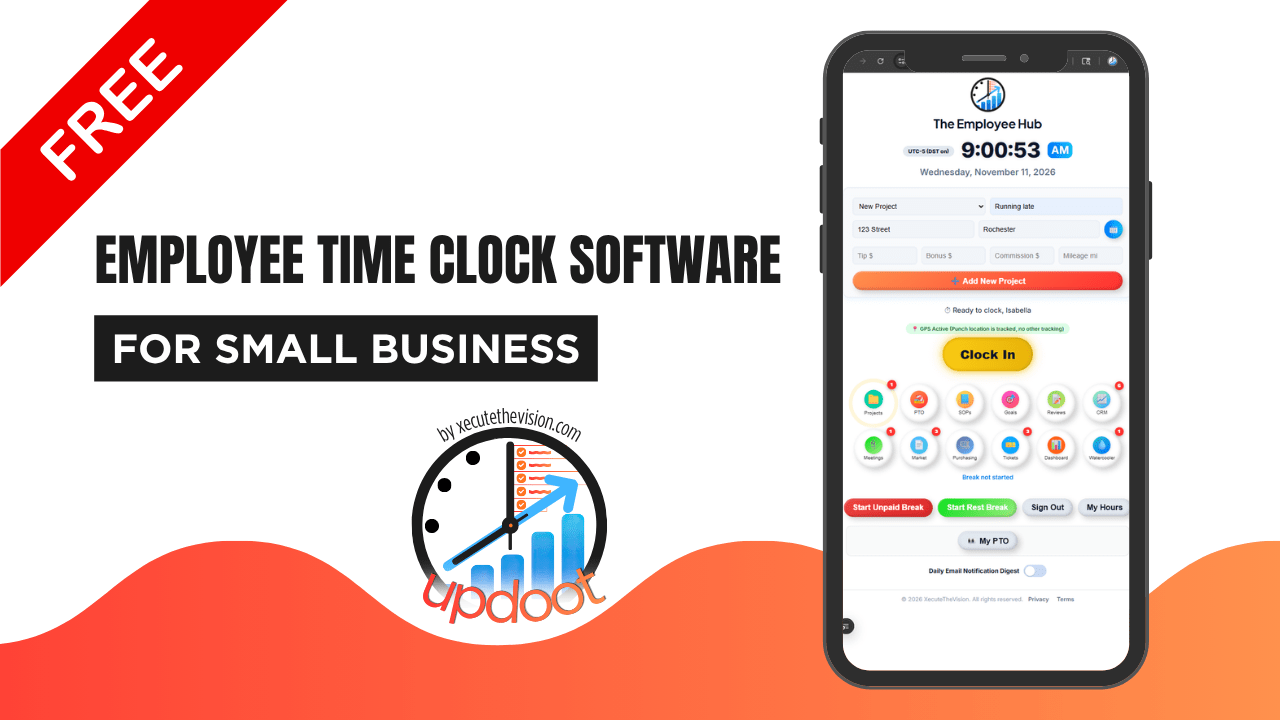
A good free time clock app for small business lets employees clock in and out from their phones or a shared tablet, records breaks, calculates overtime under your state's rules, tracks PTO, lets managers approve timecards and exports payroll-ready hours. Before you download one, check what "free" really means (a trial, a limited free plan or free for small teams), how many users it covers, whether GPS and kiosk mode are included and what happens when you grow. Updoot's Time & Attendance Essentials is free for small teams as a founding customer; see the pricing page for current terms.
Searching for a free time clock app for small business usually starts the same way: payroll is due, someone forgot to write down their hours again and you're piecing together a week from texts and memory. A free app sounds like the obvious fix. Download it, have everyone clock in on their phones and payroll gets easier. Sometimes that's exactly what happens. Other times you find out a month later that the free version doesn't calculate overtime, caps you at three users or won't export to your payroll provider.
This guide explains how to choose a free time clock app that actually works for a small business: what the different kinds of "free" mean, the features that matter most, how to handle employees' phones and location privacy, how to roll it out in a single day and what to check before you commit. There's a setup checklist and an employee announcement template you can copy.
What Is a Time Clock App?
A time clock app replaces a punch clock, paper time cards or a sign-in sheet with software on a phone, tablet or computer. Employees tap to clock in and out, start and end breaks and sometimes note what they worked on. Managers see who's working, review and approve hours and export them for payroll. Most apps also handle related tasks like overtime alerts, PTO requests and schedules. See what time and attendance software is for the bigger picture.
| Clock-in method | How it works | Best for |
|---|---|---|
| Employee's phone | Each person clocks in on their own device | Field crews, multiple locations, remote work |
| Shared kiosk | One tablet at the door or break room | Shops, restaurants, clinics, plants |
| Computer | Clock in from a browser | Office and admin staff |
| Mix | Phones for the field, kiosk at the shop | Businesses with both |
What "Free" Really Means for Time Clock Apps
"Free" covers several very different offers. Knowing which one you're looking at saves you from switching apps three months from now.
| Type of free | What you get | Watch out for |
|---|---|---|
| Free trial | All features for a limited time, often 14 to 30 days | You must pay or switch when it ends |
| Free forever, limited | A basic plan with feature limits | Overtime, PTO, GPS, exports or approvals may be locked |
| Free for small teams | Full or core features up to a user limit | What happens at the limit and what the terms are |
| Free with ads or upsells | Basic features, frequent prompts to upgrade | Distraction and data-use questions |
| Free spreadsheet | Excel or Google Sheets time sheet | Manual math, no punches, easy to edit after the fact |
For a deeper look at the trade-offs of free plans, see what free time clock software really includes.
Must-Have Features in a Free Time Clock App
A free app is only a good deal if it does the work you need. These are the features that save the most time and prevent the most expensive mistakes for small businesses.
| Feature | Why it matters | Ask |
|---|---|---|
| Mobile and kiosk clock-in | Works for both field and on-site staff | Can I use phones and a shared tablet on the same plan? |
| Break tracking | Accurate breaks and meal periods | Is there a break timer or break punches? |
| Overtime calculation | Correct pay for hours over 40, and daily rules in some states | Does it handle weekly, daily and California overtime? |
| Manager approvals | Catch errors before payroll | Can managers approve timecards and see an edit history? |
| Missed punch handling | Fix forgotten punches with a record | Are edits logged with who and why? |
| Payroll-ready export | No retyping hours | Does it export to my payroll provider or Excel? |
| PTO tracking | Vacation and sick hours in one place | How many PTO types and balances? |
| Scheduling | Compare scheduled to actual hours | Is scheduling included or extra? |
| GPS and photo capture | Confirm where and who clocked in | Is it included, and when is location recorded? |
| Data export and history | Keep records you're required to keep | Can I export all history at any time? |
Under federal law, non-exempt employees must be paid at least time and a half for hours over 40 in a workweek, and some states, such as California, also require daily overtime. Employers also have to keep records of hours worked each day and each workweek. An app that gets overtime wrong or makes records hard to export isn't free if it leads to back pay. See how long to keep time cards and payroll records.
Nice-to-Have Features
- Team location map. See who's clocked in where, useful for dispatching.
- Tips, commission and mileage fields. Keep pay details with the hours.
- Punch notes. Let employees explain late punches or record job details.
- Overnight shift handling. Shifts that cross midnight land on the right day.
- Announcements. Reach the whole team without a group text.
- Room to grow. Scheduling, HR documents and more in the same system later.
Employees' Phones, Location and Privacy
Most free time clock apps assume employees will use their own phones. That's convenient, but it raises a few questions to settle before you roll out.
- Not everyone has a smartphone. Offer a kiosk or shared tablet as an alternative.
- Personal phone use. Some states may require employers to reimburse employees for business use of personal phones. Check your state's rules or offer a kiosk option.
- Location tracking. Tell employees when location is recorded and why. Record location only while employees are on the clock.
- Photos and biometrics. Photo capture is different from facial recognition, and some states regulate biometric data. See photo time clocks and the law.
- Data ownership. Make sure you can export your records at any time, including if you stop using the app.
For more on location rules, see geofencing time clocks.
Free Time Clock App vs. Spreadsheet vs. Paper
| Paper time cards | Spreadsheet | Free time clock app | |
|---|---|---|---|
| Cost | Cards and a clock | Free | Free (check limits) |
| Clock-in proof | Handwriting or stamp | Typed in later | Time-stamped punches |
| Overtime math | Manual | Formulas you build | Automatic, if included |
| Edits | Pen and initials | Easy to change | Logged, if included |
| Payroll | Retype hours | Copy and paste | Export |
| Best for | Very small, single site | One person maintaining it | Teams that want punches and approvals |
Spreadsheets work well for many small teams, especially when one person keeps them up to date. See the free weekly and biweekly time sheets if that's your best fit right now. An app becomes worth it when you have more than a few people, more than one location or a manager spending hours on payroll prep.
How to Choose: A 10-Minute Test
- Count your users. Include part-time and seasonal employees. Check the free plan's limit.
- List your must-haves. Overtime rules for your state, PTO, approvals and payroll export.
- Check how people will clock in. Phones, kiosk or both.
- Read what happens when you grow. What changes at the user limit, and what do the current terms say?
- Test one real shift. Clock in, take a break, clock out, edit a punch and export the hours.
- Check the export. Does it match what your payroll provider needs?
- Ask about support. Free plans sometimes come with limited support.
Roll Out a Time Clock App in One Day
A small team can go from download to first punches in a day. Here's a simple plan.
| When | Step |
|---|---|
| Morning | Set up your company, workweek start day, overtime rules and pay periods |
| Morning | Add employees, pay rates, locations or jobs |
| Midday | Decide phones, kiosk or both; set up the kiosk tablet if used |
| Midday | Write a one-page time clock policy (see the timekeeping policy creator) |
| Afternoon | Send the employee announcement and invite links |
| Next shift | Everyone clocks in; a manager helps anyone who gets stuck |
| End of week | Review and approve timecards; fix missed punches |
| First payroll | Export hours and compare to your old method once |
Time Clock App Setup Checklist
| Done | Setup item | Notes |
|---|---|---|
| ☐ | Workweek start day and time set | |
| ☐ | Overtime rules set (weekly, daily or California) | |
| ☐ | Pay periods set | |
| ☐ | Employees added with pay rates | |
| ☐ | Locations, jobs or departments added | |
| ☐ | Clock-in method chosen (phone, kiosk or both) | |
| ☐ | Break rules set | |
| ☐ | PTO types and balances entered | |
| ☐ | Manager approvers assigned | |
| ☐ | GPS and photo settings decided and explained | |
| ☐ | Time clock policy written and shared | |
| ☐ | Payroll export tested | |
| ☐ | First week of timecards reviewed and approved |
Employee Announcement Template
Subject: New time clock starting [date]
Hi team,
Starting [date], we're using [app name] to track time instead of [paper cards / the sign-in sheet]. It will make sure every hour you work is recorded and paid correctly, and it makes requesting time off easier.
How to clock in: [Download the app and log in with the invite link / use the tablet at the front desk].
Breaks: Clock out for unpaid meal breaks and back in when you return.
Location: [The app records your location when you clock in and out, only while you're on the clock.]
Missed a punch? Tell [manager] the same day.
Questions or no smartphone? Talk to [name] and we'll set you up on [the kiosk].
Thanks,
[Name]
Common Mistakes With Free Time Clock Apps
- Picking on price alone. A free app that can't calculate overtime costs more than it saves.
- Ignoring the user limit. Adding a seasonal hire can push you onto a paid plan or a new app.
- Skipping the policy. Without rules for breaks and missed punches, the app just records confusion.
- Not explaining GPS. Employees trust tracking they understand.
- Forgetting the export test. Find problems before payroll day, not on it.
- Running two systems forever. Compare once, then switch fully.
Example: A Seven-Person Cleaning Company
A residential cleaning company with seven employees used a shared Google Sheet where cleaners typed their hours at the end of each day. Hours were often rounded, drive time between homes was forgotten and the owner spent Sunday nights fixing the sheet before payroll. She switched to a free time clock app for small teams, had cleaners clock in on their phones with GPS at the first home and clock out at the last, and approved timecards on Monday morning. Drive time between homes was now recorded and paid correctly, overtime was calculated automatically in busy weeks and the payroll export went straight to her payroll provider. Sunday nights went back to being Sunday nights.
What Happens When You Outgrow a Free Plan?
Growing past a free plan is a good problem, but plan for it now. Before you commit, find out how the app handles the next user over the limit: whether the whole team moves to a paid plan, only the extra users are billed or features change. Check whether your history, PTO balances and settings stay in place when you upgrade, because switching apps later means exporting records, retraining employees and setting everything up again. Picking a free time clock app that can grow with you, rather than one you'll have to leave, saves you a second switch. See how to switch time clock software if you're moving from another tool.
Questions to Ask Before You Download
- How many users does the free plan cover, and does it include part-time staff?
- Is overtime calculated for my state's rules?
- Are GPS, photo capture and kiosk mode included for free?
- Can I export all my data at any time?
- What support is included on the free plan?
- What are the current terms, and how will I be notified if they change?
Final Thoughts
The best free time clock app for a small business is the one your team will actually use and that still gets payroll right: mobile and kiosk clock-in, break tracking, correct overtime, approvals with an edit history, PTO and a clean payroll export. Know which kind of free you're getting, check the user limit and what happens when you grow, explain GPS and phone use to employees and test one real pay period before you commit.
Try Updoot's Free Time Clock for Small Teams
Updoot's employee time clock is part of Time & Attendance Essentials, which is free for small teams as a founding customer. It includes mobile clock-in with GPS and photo capture, kiosk punch mode, a break timer, midnight splits for overnight shifts and daily, weekly or California overtime tracking with a dashboard.
You also get five PTO categories, advanced scheduling with suggest and swap shifts, a team location map, tips, bonuses, commission, punch notes and mileage, pay rates and multipliers with gross pay in a payroll-ready export to Gusto, ADP or Paychex, admin timecard approval with an audit log and an HR vault. Every tool exports to Excel or Google Sheets, so your records are always yours.
See the Updoot pricing page for current plans and offer terms, and start free with your team.
Sources
- U.S. Department of Labor: Overtime Pay
- U.S. DOL Fact Sheet #21: Recordkeeping Requirements Under the FLSA
- California Labor Commissioner: Overtime FAQ
Related Reading