
How to Create an Excel Company Cash Flow Planner with Download

An Excel company cash flow planner shows how much cash will come into your business, how much will go out, and what your bank balance will look like month by month. It is one of the most useful tools a business owner can build, because profit on paper does not pay the bills. Cash does.
A good planner helps you spot tight months before they arrive, decide when you can afford to hire or buy equipment, and have informed conversations with your bank or accountant. And Excel is all you need to build one.
This guide walks through building a 12-month cash flow planner from scratch, from defining its purpose and laying out the categories to writing the formulas, formatting it, and testing it. It also includes a free planner that projects your cash for the year and copies straight into Excel with every formula in place.
Step 1: Define the Purpose of Your Cash Flow Planner
Before you open Excel, decide what the planner needs to tell you. A company cash flow planner should track cash inflows each month, such as customer payments, loans, and investments, and track cash outflows each month, such as payroll, rent, suppliers, and loan payments.
From those, it calculates net cash flow, the difference between money in and money out, and a running bank balance. Most importantly, it looks forward. A planner shows your expected financial position in the months ahead, so you can make decisions before a shortfall happens rather than react after it.
Remember that a cash flow planner records cash when it actually moves, not when you invoice or receive a bill. A sale invoiced in March but paid in April belongs in April. That timing difference is exactly why businesses that look profitable can still run short of cash. Our guide to understanding financial statements explains how cash flow differs from profit.
Step 2: Set Up the Structure in Excel
Open a new workbook and rename the sheet "Cash Flow Planner." A clean layout puts categories down the side and months across the top.
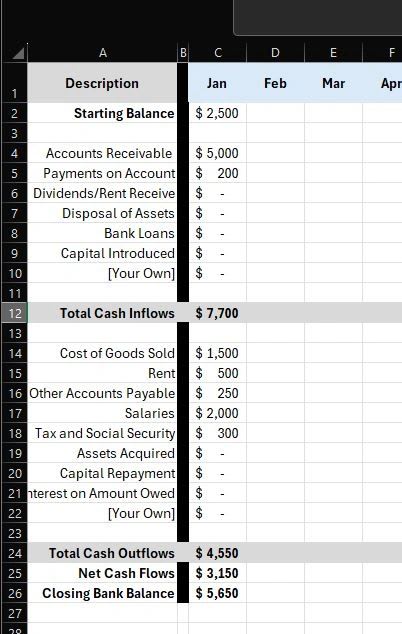
In cell A1, add a title. In A2, type "Starting cash balance" and put the amount in B2. Leave row 3 empty. In row 4, add the headings: "Category" in A4, "Growth per month" in B4, Month 1 through Month 12 in C4 through N4, and "Total" in O4.
Below the headings, create two sections: "Cash inflows" and "Cash outflows," with a blank row between them for clarity. Each section ends with a total row, and below both sections you add rows for net cash flow, opening balance, and closing balance.
Common Cash Inflows
Include every source of cash that realistically applies to your business.
| Cash inflow | What belongs here |
|---|---|
| Customer payments (accounts receivable) | Money actually received from paid client invoices, in the month it arrives |
| Payments on account | Deposits and prepayments received for work not yet done |
| Other income | Interest, rent received, and other non-client income |
| Asset sales | Cash from selling vehicles, equipment, or other assets |
| Loans | New funding received from a lender |
| Capital introduced | Money an owner or investor puts into the business |
Common Cash Outflows
List every regular and occasional payment. Be thorough, because forgotten outflows are what make a planner too optimistic.
| Cash outflow | What belongs here |
|---|---|
| Cost of goods sold | Inventory, materials, shipping, and outside costs to deliver your product or service. If you include direct labor here, leave it out of salaries. |
| Salaries and wages | Base pay, overtime, and paid time off |
| Payroll taxes | The employer's share of payroll taxes and benefits |
| Rent | Office, shop, or warehouse costs |
| Other payables | Software, utilities, insurance, and any cost not listed elsewhere |
| Assets purchased | Vehicles, equipment, and other major purchases |
| Loan and capital repayments | Principal repaid to lenders, and draws or repayments to owners that are not payroll |
| Interest | Interest paid on loans and credit lines |
Step 3: Enter the Formulas
With the structure in place, a handful of formulas do all the work. The examples below assume inflow categories in rows 6 through 9 and a total in row 10, with outflows in rows 13 through 19 and a total in row 20. Adjust the row numbers to match your own layout.
Monthly totals. Add up each section for each month. In C10, =SUM(C6:C9) totals January's inflows, and in C20, =SUM(C13:C19) totals outflows. Copy both across to column N. Keep the starting balance out of these ranges, since it is a balance, not an inflow.
Net cash flow. In the net cash flow row, subtract outflows from inflows, for example =C10-C20, and copy it across.
Opening and closing balance. Month 1's opening balance points to the starting balance, =$B$2. Each closing balance is the opening balance plus net cash flow, =C22+C21. From Month 2 onward, the opening balance equals the prior month's closing balance, for example =C23 in D22. This chain is what turns a list of numbers into a forecast.
Growth. For categories that change steadily, such as sales growing 2% a month, enter the first month's amount and use =C6*(1+$B6) in the next month, with the growth rate in column B. Copy it across and the whole row updates when you change the rate.
Totals. In column O, add up each row for the year, such as =SUM(C10:N10) for total inflows. Do not total the balance rows, because adding balances together has no meaning.
Step 4: Format Your Planner
Formatting makes the planner easy to read and hard to misuse. Add borders to separate the sections, and format every number as currency so totals are easy to scan. Bold the total, net cash flow, and closing balance rows.
Use conditional formatting to highlight trouble automatically. Select the closing balance row, go to Home, Conditional Formatting, Highlight Cells Rules, Less Than, enter 0, and choose red. Add a second rule in amber for balances below your minimum cash cushion. Our guide to mastering conditional formatting shows more options.
Finally, freeze the top rows and first column with View, Freeze Panes, so category names and month headings stay visible as you scroll. Color-code input cells, such as a light yellow fill, so anyone using the planner knows which cells to type in and which contain formulas.
Step 5: Test and Adjust
Enter realistic sample figures and check that each total, net cash flow, and balance calculates correctly. A quick test is to add a one-time $1,000 inflow in one month and confirm that every later closing balance rises by exactly $1,000.
Then look at the results. Which months are tightest? Is there a seasonal dip, a large annual bill, or an equipment purchase that pushes the balance down? Tailor the categories to your business, adding lines that matter and removing ones that do not.
Step 6: Save, Share, and Update Monthly
Save the finished planner as a template so you can reuse the structure every year. Share it with your team, bookkeeper, or financial advisor so everyone is working from the same forecast.
The real value comes from keeping it current. At the end of each month, replace the forecast figures with actual results, then roll the forecast forward so you always have a full year ahead. Comparing forecast with actual each month also shows you where your assumptions are too optimistic.
Free 12-Month Cash Flow Planner
The planner below builds the forecast for you. Enter your starting balance, a minimum cash cushion you want to keep, a typical month for each inflow and outflow with an optional monthly growth rate, and one large one-time item, such as an equipment purchase. It projects 12 months and flags any month that falls below your cushion or below zero.
The example starts with $15,000 in cash, sales growing 2% a month, and a $25,000 equipment purchase in month 6. Click Copy Planner to Excel and paste into cell A1 of a blank sheet to get the full planner, with categories down the side, months across the top, growth formulas, totals, opening and closing balances, and a cushion check, all as live formulas. You can also get the ready-made template from our free downloads.
12-Month Cash Flow Planner
Enter your starting cash balance and a typical month for each inflow and outflow, with an optional monthly growth rate. Add one-time items in the month they happen. The planner projects 12 months of inflows, outflows, net cash flow, and ending balance, and flags any month where cash runs short. Copy it to Excel as a full planner with live formulas. Nothing you enter is saved or sent anywhere.
| Cash inflows | Per month ($) | Growth %/mo |
|---|
| Cash outflows | Per month ($) | Growth %/mo |
|---|
| Month | Inflows | Outflows | Net cash flow | Ending balance |
|---|
In the example, the business is profitable every month, yet the equipment purchase pulls the balance to its lowest point in month 6, well below the $10,000 cushion. That is exactly the kind of timing problem a planner exists to catch, and the owner can respond early by delaying the purchase, financing it, or building up cash in the months before.
Tips for Better Cash Flow Management
Be conservative with inflows. Customers often pay late. Forecast receipts based on when clients actually pay, not your invoice terms.
Include every outflow. Quarterly taxes, annual insurance premiums, and software renewals are easy to forget and painful to discover.
Keep a cash cushion. Decide on a minimum balance that covers at least a few weeks of fixed costs, and treat any month below it as a warning.
Speed up collections. Invoicing promptly and following up on overdue accounts is often the fastest way to improve cash flow. The U.S. Small Business Administration's guide to managing business finances offers more practical advice.
Review monthly. A planner that is not updated quickly becomes fiction. Put a monthly review on the calendar.
Connecting Cash Flow to Daily Operations
Many of the biggest cash flow levers, such as billing promptly, tracking labor costs, and knowing which projects are profitable, happen in daily operations rather than in the spreadsheet. Updoot is business management software that connects time tracking, projects, invoicing, and budget tracking, so invoices go out faster and your planner starts from accurate numbers. It costs $5 per user per month, and you can start a free trial anytime.
Final Thoughts
An Excel company cash flow planner gives you a clear view of the money coming in and going out and, most importantly, of what lies ahead. Define its purpose, lay out your inflow and outflow categories, link the months with opening and closing balance formulas, format it so problems stand out, and update it every month. Start with the free planner above or the template in our free downloads, and you will never be surprised by a cash shortfall again.
Sources
General cash management guidance references the U.S. X. Example figures are illustrative.
Opens in Google Drive. View and download for free.
Related Reading
Understanding the Differences Between Financial Statements →
Frequently Asked Questions About Excel Cash Flow Planners
What is a cash flow planner?
A cash flow planner is a month-by-month forecast of the cash coming into and going out of a business, showing net cash flow and the expected bank balance so owners can spot shortfalls before they happen.
What should be included in a cash flow forecast?
Every source of incoming cash, such as customer payments, deposits, loans, and owner capital, and every outgoing payment, such as suppliers, payroll, payroll taxes, rent, software, loan repayments, interest, and asset purchases.
How do I calculate the ending cash balance in Excel?
Add net cash flow to the opening balance. Month 1 opens with your starting balance, and each later month opens with the previous month's closing balance.
What is the difference between cash flow and profit?
Profit records income and expenses when they are earned or incurred. Cash flow records money when it actually moves. Late customer payments, inventory purchases, and loan repayments can reduce cash even when the business is profitable.
How far ahead should a cash flow forecast go?
Twelve months is a common planning horizon, updated monthly so there is always a full year ahead. Businesses with tight cash often also keep a weekly forecast for the next 13 weeks.
How often should I update my cash flow planner?
At least monthly. Replace forecasts with actual figures, roll the forecast forward, and compare forecast with actual to improve your assumptions.
Where can I get a free cash flow planner template?
Use the free planner on this page, which copies into Excel with every formula, or download the ready-made template from the XecuteTheVision free downloads page.