
Employee Time Recording Software for Small Businesses
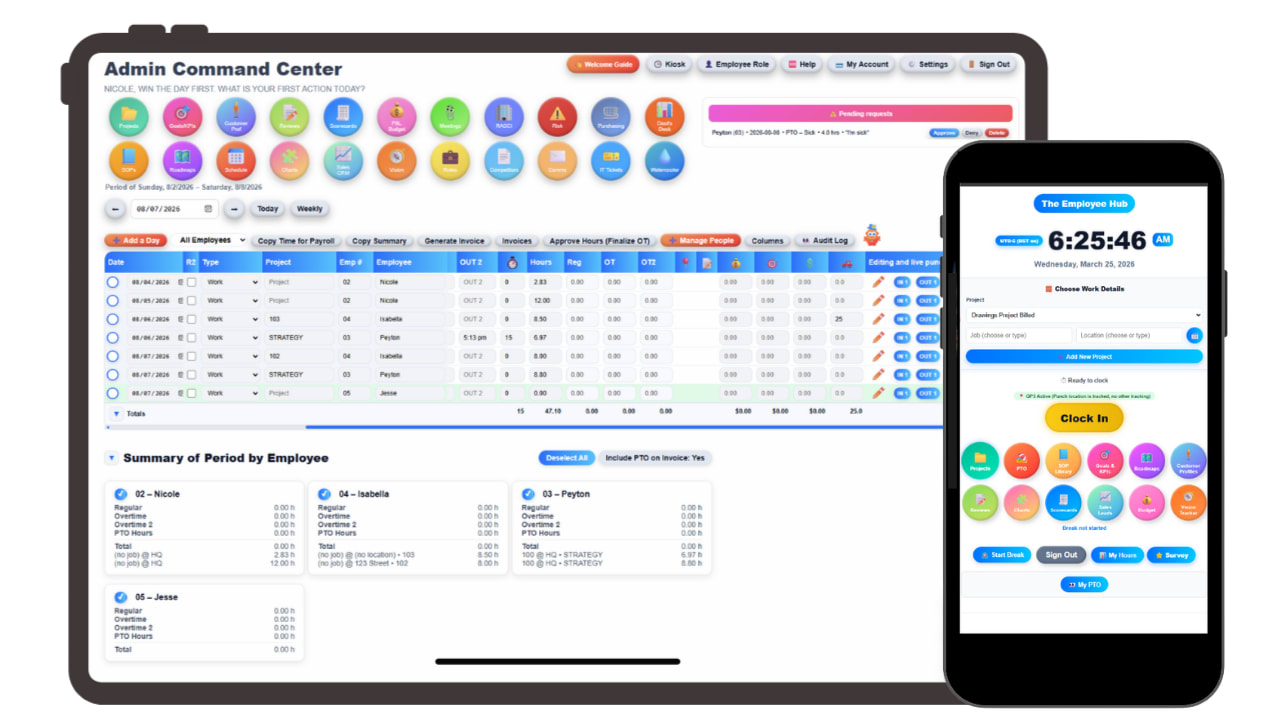
Employee time recording software is the system that captures when people start work, take breaks and go home, and turns those moments into timesheets, overtime and payroll. For a small business it is usually the first piece of software that touches every single employee, every single day, which is exactly why getting it right matters more than almost any other tool you buy.
Quick Answer
Employee time recording software replaces paper timesheets, punch cards and spreadsheets with digital clock-ins from a phone, a shared kiosk or a browser. A good small business system records hours accurately, handles breaks and overtime automatically, ties time to jobs or projects, routes timecards for approval and exports clean data to payroll. Look for mobile and kiosk punches, GPS and geofencing, break and overtime rules, approvals, job costing and one-click export, and check whether those features are included or sold as add-ons.
Table of Contents
- What Time Recording Software Actually Does
- Why Paper and Spreadsheets Stop Working
- What the Law Expects You to Record
- Features That Matter for a Small Business
- Ways Employees Can Record Time
- Where the Time Goes After the Punch
- How to Choose the Right System
- How to Roll It Out Without Pushback
- Common Mistakes to Avoid
- How Updoot Handles Time Recording
- Frequently Asked Questions
What Time Recording Software Actually Does
At its simplest, time recording software answers one question: how many hours did each person work, and when? But the useful versions answer several more questions at the same time, and that is where the value is.
A modern system records the punch itself (who, when, and often where), applies your rules to it (breaks, overtime, rounding, pay rates), attaches it to the work it belongs to (a job, a project, a location or a client), sends it to a manager for approval, and hands the finished result to payroll and invoicing. Each of those steps used to be a separate manual job. Now they happen as a side effect of someone tapping a button.
I spent years teaching people how to build spreadsheets that did all of this, and some of those spreadsheets were genuinely impressive. They were also fragile. One wrong formula, one copied row, one manager who typed "7.5" as text instead of a number, and the payroll total was quietly wrong. Time recording software exists because the stakes are too high for a system that breaks silently.
Why Paper and Spreadsheets Stop Working
Paper timesheets and spreadsheets work fine when you have three employees in one room and an owner who sees everyone arrive. They stop working at a fairly predictable point, and most businesses feel it before they name it.
The signs you have outgrown them
- Payroll day is a project. Someone spends hours collecting sheets, chasing missing ones, deciphering handwriting and retyping totals.
- You are not sure the times are real. Every timesheet says 8:00 to 4:30, every day, which is statistically unlikely and impossible to verify.
- Overtime surprises you. You find out someone worked 52 hours after the pay period closes, not while you could still do something about it.
- You cannot answer "what did that job cost?" Hours were recorded per person, not per job, so labor cost is a guess.
- Your team is not in one place. Field crews, multiple locations or remote staff mean nobody physically sees the start and end of the day.
- A wage complaint would worry you. If a former employee claimed unpaid overtime, you would struggle to produce clean records proving otherwise.
That last one is the one owners tend to underestimate. In a wage dispute, the quality of your records matters a great deal, and handwritten sheets with identical times every day are not a strong position to argue from.
What the Law Expects You to Record
This is where time recording stops being a convenience and becomes an obligation. In the United States, the Fair Labor Standards Act (FLSA) requires covered employers to keep accurate records for non-exempt employees, and there is no small-business carve-out from that record-keeping duty if you are covered.
Federal rules call for records that include, among other things, the employee's identifying information, the workweek, the hours worked each workday and each workweek, the regular rate of pay, straight-time and overtime earnings, deductions and the pay period dates. Federal overtime applies to hours over 40 in a workweek for non-exempt employees, at one and a half times the regular rate.
| Record | Federal minimum retention | What it covers |
|---|---|---|
| Payroll records | At least 3 years | Pay rates, hours totals, earnings, deductions, pay dates |
| Time cards and schedules | At least 2 years | The supporting records wage calculations are based on |
| State requirements | Varies, often longer | Breaks, daily overtime, split shifts, reporting time |
States frequently go further. California is the best known example: it has daily overtime after 8 hours, meal period requirements once a shift passes certain lengths, and paid rest breaks for every few hours worked, with penalties when breaks are missed. A system that can distinguish an unpaid meal period from a paid rest break, and flag when one was skipped, is doing compliance work for you every day.
Not legal advice: wage and hour rules change and vary by state, city and industry. Use this section as a checklist of questions, then confirm the specifics with your state labor department or an employment attorney before setting your rules.
The practical takeaway is simple. Your time recording system should capture actual punch times rather than just daily totals, keep an audit trail of any edits, apply overtime automatically, handle your state's break rules, and let you export complete records whenever you need them.
Features That Matter for a Small Business
Feature lists for time tracking tools run long, and most of them look identical on a comparison page. These are the ones that actually change how your week goes.
| Feature | Why it matters | What to check |
|---|---|---|
| Mobile clock-in | Field and remote staff punch from where the work is | Works on both iPhone and Android, simple enough for day one |
| Kiosk mode | One shared tablet at the door for shift teams | Individual PINs, photo capture at punch |
| GPS and geofence | Confirms punches happen at the job site | Location captured at punch, not tracked all day |
| Break tracking | Separates paid rest from unpaid meal periods | Supports your state's rules, flags missed breaks |
| Automatic overtime | No manual math, no surprises after the period closes | Weekly and, where needed, daily overtime |
| Job and project costing | Know what each job really cost in labor | Employees pick the job at punch, not afterward |
| Timecard approvals | Managers sign off before payroll runs | Weekly or biweekly periods, edit history kept |
| PTO tracking | Time off lives next to time worked | Multiple PTO types, not one generic bucket |
| Payroll export | Clean hand-off to your payroll provider | Multiple pay rates, overtime and PTO multipliers |
| Data export | Your records stay yours | One-click export to Excel or Google Sheets |
Two features deserve a closer look because they separate a timesheet tool from a real operations tool.
Job costing at the punch. If employees choose the job or project when they clock in, every hour is costed the moment it is worked. If they fill it in on Friday from memory, you get guesses. The difference shows up the first time you try to price a similar job and want to know what the last one actually took.
An audit trail on edits. People forget to clock out. Managers will need to fix punches. That is normal. What matters is that the system records who changed what, when, and ideally why, so the record stays defensible.
Ways Employees Can Record Time
There is no single right way for employees to punch in. The right method depends on where your people work, and many businesses use more than one.
Mobile app
Best for field crews, trades, home services, delivery and anyone whose workday starts somewhere other than your building. Pair it with GPS and a geofence so a punch from the kitchen table does not count as arriving on site.
Shared kiosk
Best for retail, restaurants, warehouses, clinics and any location where everyone starts in the same place. A tablet by the door with individual PINs and photo capture is quick for staff and hard to game.
Web browser
Best for office and hybrid staff who start their day at a computer anyway. Clocking in becomes part of logging on.
Manager entry
Useful as a backup for crews without phones on site or for correcting missed punches, but it should be the exception, logged and approved, never the main method.
On GPS specifically: be clear and upfront. Capture location at the moment of the punch, not continuously, and tell employees in writing what is recorded and why. Rules on notice and consent differ between states, so confirm yours before switching it on. Done openly, most employees see it as protection, because it backs up their own hours as much as it checks them.
Where the Time Goes After the Punch
This is the part most buyers skip, and it is where the real time savings are. Recording hours is only step one. The question is how much work happens between the punch and the paycheck, and between the punch and the invoice.
In a disconnected setup, the time clock produces a report, someone exports it, someone else reformats it for payroll, and a third person pulls the same hours into a spreadsheet to build the client invoice. Every handoff is a chance for a typo, and every typo costs either your employee or your margin.
In a connected setup, the punch is the single source. Hours flow to payroll reporting with overtime and pay rates already applied. The same hours, already tagged to a job, flow to job costing. And because the job belongs to a client, those hours can flow straight onto the invoice.
The test to run on any system: pick one employee's Tuesday and follow it. How many times does a human have to touch that data before it becomes a paycheck line and an invoice line? The right answer is once: when the employee clocks in.
How to Choose the Right System
Demos are designed to look good. These questions are designed to find out whether a system will still work for you on a busy Friday six months from now.
- How do my people actually start work? Map every role: on site, in the field, at a desk, across locations. Rule out any tool that cannot handle all of them.
- What are my pay rules? List overtime rules, break rules, multiple pay rates, shift differentials and PTO types. Ask the vendor to show each one configured, not just listed.
- Do I need hours by job? If you bill clients or bid on work, job and project costing is not optional.
- What happens at payroll? Ask to see the actual export your payroll provider would receive, with overtime and PTO calculated.
- What is included in the price? Many tools advertise a low base price, then put GPS, scheduling, approvals or exports in higher tiers. Price the version you would actually use.
- What else do I need next year? Scheduling, HR records, hiring and invoicing all depend on the same people and hours data. A time clock that connects to them saves you buying and stitching together more tools later.
- Can I get my data out? If export is limited or locked behind support tickets, that is a red flag for the next three years of your records.
- Will my least technical employee manage it? Have them try the trial. If they need training to clock in, adoption will suffer.
A note on cost
Per user pricing makes tools look cheap until you multiply it out and add the extras. The honest comparison is total monthly cost for your actual headcount with every feature you need switched on, plus the hours you currently spend on payroll prep. For most small teams, the hours saved are worth far more than the subscription, but only if the system actually removes the manual steps instead of moving them.
How to Roll It Out Without Pushback
The technology is the easy part. People are the part that makes a rollout succeed or stall. In my experience, resistance to a time clock is rarely about the clock. It is about trust, and you can address that directly.
- Explain the why first. Lead with what employees get: accurate pay, overtime that is never missed, PTO balances they can see, and proof of their hours if anyone ever questions them.
- Write down the rules. Rounding, breaks, missed punches, GPS and who can edit time. Put it in the employee handbook so it is consistent and fair.
- Configure before you launch. Set up jobs, locations, pay rates, overtime and break rules first, so day one works properly.
- Run one pay period in parallel. Keep the old method for a single period and compare totals. It catches setup errors and builds confidence.
- Train managers on approvals. The system only stays accurate if managers review and approve timecards on schedule.
- Review after 30 days. Look at missed punches, edits and overtime patterns. Adjust rules or coaching based on what you see.
Common Mistakes to Avoid
- Choosing on price alone. The cheapest tool that still leaves you retyping hours into payroll is not cheap.
- Rounding in your own favor. If you round punch times, the policy must be neutral over time, not one that consistently shaves minutes from employees.
- Letting managers edit without a trail. Every edit should be logged with who made it and when.
- Ignoring off-the-clock work. Pre-shift setup, post-shift cleanup and answering messages after hours can all count as work time. The system should capture reality.
- Treating it as a surveillance tool. Time recording works best when it is positioned, and used, as a fairness tool.
- Buying a time clock that is an island. If it does not connect to scheduling, payroll and invoicing, you have digitized the punch but kept the paperwork.
How Updoot Handles Time Recording
I built the time clock in Updoot because I kept living inside the gap between the punch and everything that depends on it. So it was designed around that hand-off from the start.
Employees clock in online, on mobile or at a kiosk, with admin photo capture at punch, GPS, and a punch fence that ties clock-ins to the job site. A team location map shows who is where. Every punch is tracked by job, project and location, so hours are costed as they are worked. Tips, bonuses, commissions, punch notes and mileage sit alongside the time card.
Break timers separate unpaid breaks from meal and rest periods, including the California rules. Overtime calculates automatically. Timecards are approved on weekly or biweekly periods, and there are five PTO types, so a floating holiday is not lumped in with vacation.
Then the hours keep going. Payroll reporting calculates gross pay with multiple pay rates and overtime and PTO multipliers and exports it for your payroll provider. The invoice generator pulls hours straight from the time clock and projects. Because scheduling lives in the same system, planned shifts and actual punches sit side by side. And every tool has one-click export to Excel and Google Sheets, because your records should always be yours.
It is $5 per user per month with everything included, not a starter tier that unlocks the useful parts later.
Frequently Asked Questions
Employee time recording software captures when employees start work, take breaks and finish, and often what job or project they worked on. It turns those punches into timesheets, calculates overtime, routes timecards for approval and produces payroll-ready reports, replacing paper timesheets, punch cards and spreadsheets.
In the United States, the Fair Labor Standards Act requires covered employers to keep accurate records of hours worked by non-exempt employees, and there is no small-business exemption from that record-keeping duty for covered employers. Many states add their own rules on breaks, daily overtime and record retention, so check with your state labor department or an employment attorney.
Under the federal rules, payroll records should be kept for at least three years, and the time cards and work schedules that wage calculations are based on for at least two years. Some states require longer, so the safe approach is to keep everything for the longest period that applies to you.
Through a combination of individual logins or PINs, photo capture at the moment of the punch, GPS location on mobile punches, a geofence that limits where people can clock in, and manager approval of timecards before payroll. No single control is perfect, but together they make covering for a coworker difficult and obvious.
Recording location at the moment of a work punch is widely used, but notice and consent rules vary by state. The good practice is to capture location only at punch time rather than continuously, tell employees in writing exactly what is recorded and why, and confirm the rules in your state before turning it on.
Most tools charge per user per month, sometimes with a base fee on top, and features like GPS, scheduling, job costing or payroll export often sit in higher tiers. Updoot is $5 per user per month with every feature included, and there is a 14 day free trial with no credit card.
Usually it feeds payroll rather than replacing it. The time system captures and approves hours, calculates overtime and gross pay, and exports a clean file to your payroll provider, which handles tax withholding, filings and payments.