
Speed up Yourself and Spreadsheets with Array
Your vision is to be efficient in Sheets and Excel and to use Arrayformula whenever you can so your spreadsheets are quick.
Let’s say you have a project where you have to find margin and which products are $10 and above. You can do this by adding formulas, but did you know that if you use the =arrayformula, it can speed you and your spreadsheet up? Try opening the sample spreadsheet and following along in the article or video for easy instructions.
First, what is an array in Excel and Sheets?
It’s a set of values, with columns separated by commas or semi-colons, and it’s basically used to rearrange data. You can choose rows or columns to move elsewhere in any order. You will see curly brackets anytime a cell is part of an array.
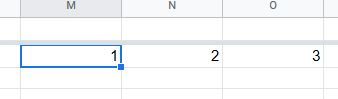
Example 1: ={1,2,3}
You will see a 1, a 2, and a 3 in 3 separate columns.
What if you want to put numbers in rows instead?
Use a ;
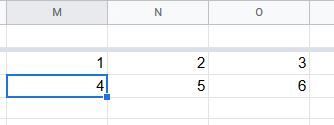
Example 2: ={1,2,3;4,5,6}
Now, what is an arrayformula?
- You may use an arrayformula to get information from a range rather than having separate columns.
- Using this formula can take several steps out of the process which is easier for you but also keeps the spreadsheet from slowing down because you are saving repetitive formulas.
You may either type =arrayformula like below, or type in your formula and hit ctrl + shift + enter and then your formula will be turned into an array. Ctrl + shift + enter is required, these formulas do not work to just type in curly brackets.
Example 3 Margin: Let’s say you want to know the margin or difference between the price and cost for every item.
1st, highlight all of the cells you want the formula to appear in. So we highlight J2:J31.
Second, enter =ARRAYFORMULA(E2:E31-D2:D31)
OR enter =(E2:E31-D2:D31) and hit ctrl + shift + enter.
Pro Tip: If you want to make sure you can keep adding rows in the future, leave the 31 off and just enter an E and D then you aren’t going to be capped at 31.
You will see you get zeros all the way down the column though. So, to remove those, you will need an if statement (there’s another video on those.) The IF statement is going to say, if we have a zero in the field, then mark it blank, which is what “” means, and then if we have a value, the formula needs to subtract column D from E. Now the zeros don’t show, you should see all blanks.
Change our formula into an if to remove zeros:
=ARRAYFORMULA(IF(LEN(E2:E)=0,"",E2:E-D2:D))
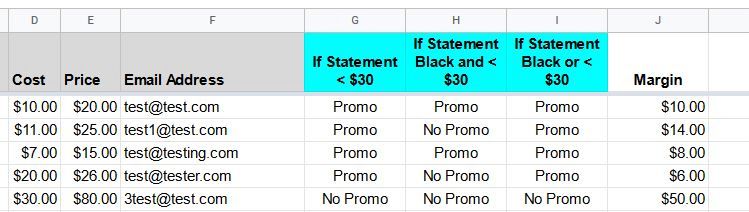
Example 4 sum of margin: Now, let’s say you want to know the sum of the margin of all products. Instead of highlighting a column first, click on cell I35 and enter the below, or use the example where you hit ctrl + shift + enter to get $1007.
=ARRAYFORMULA(SUM(E2:E31-D2:D31))
Example 5 finding products above $10 in margin: As our final example, let’s say we want to have a column that tells us whether the margin is below $10.00. We will use arrayformula again because while we don’t have to, using just one formula makes this easier and takes up less system resources.
=Arrayformula(IF(J2:J31<10,"Less","Above"))
Now, in column K, you can see clearly the items that are less than $10 margin and those above.
Again, if you wanted to leave it open to add more rows, you can add the steps from example 4 to remove the “Aboves” that will go down the page.
Important Notes About Array Formulas
- f you use arrays in your spreadsheets, it does cause a little trouble when editing cells so you will want to make sure people who are going to be working in the spreadsheet know how to handle those. For example, you can’t edit just one cell if it’s part of array formula, you have to highlight all and delete. So, in our case, you would have to delete column J.
- If you make an edit to the formula after you left it, you have to hit ctrl + shift + enter each time.
- Reminder, ctrl + shift + enter is required, these formulas do not work to just type in curly brackets.
In summary, arrays allow you to combine formulas that you would normally have to drag down which makes things quicker for you, along with speeding up the spreadsheet so your spreadsheet has less formulas in it.