
Google Sheets Formula List Cheat Sheet
The Most Common Google Sheets Formulas Chart
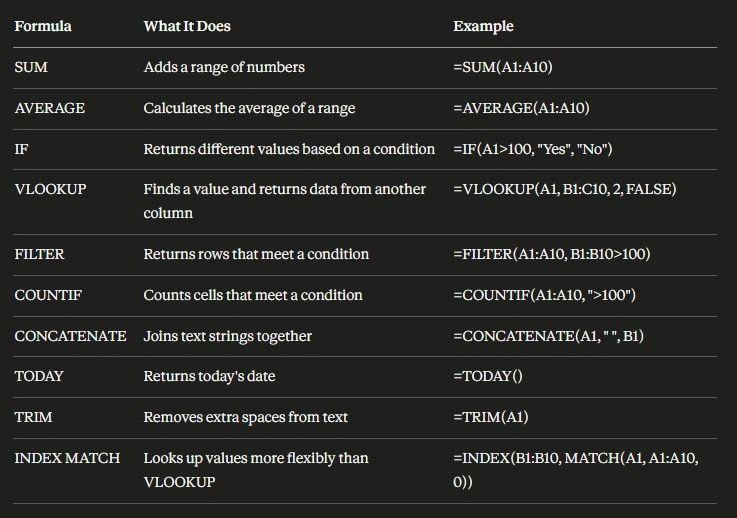
Google Sheets is more than just a simple spreadsheet tool, it's a powerful platform that can handle everything from basic data organization to complex financial analysis. Whether you're a beginner just starting out or a seasoned professional looking to sharpen your skills, mastering Google Sheets formulas can significantly enhance your productivity and data management capabilities.
In this guide, we've compiled a list of essential Google Sheets formulas that every user should know. From basic arithmetic operations to advanced statistical calculations, these formulas will help you navigate and manipulate your data with ease. Whether you're crunching numbers, managing text, or analyzing trends, these functions are your key to unlocking the full potential of Google Sheets.
Let’s dive in and explore these formulas, categorized by their functions, so you can start applying them to your projects right away!
Here are the formulas to know by Google Sheets function type
Basic Arithmetic formulas in Google Sheets
SUM=SUM(A1:A10)Adds up the numbers in a range.AVERAGE=AVERAGE(A1:A10)Calculates the average of a range of numbers.MIN=MIN(A1:A10)Returns the smallest value in a range.MAX=MAX(A1:A10)Returns the largest value in a range.COUNT=COUNT(A1:A10)Counts the number of numeric values in a range.COUNTA=COUNTA(A1:A10)Counts the number of non-empty cells in a range.
Text Functions in Google Sheets
CONCATENATE=CONCATENATE(A1, " ", B1)Joins together multiple text strings.SPLIT=SPLIT(A1, ",")Splits a text string into separate values based on a delimiter.LEFT=LEFT(A1, 3)Extracts the first three characters of a text string.RIGHT=RIGHT(A1, 4)Extracts the last four characters of a text string.LEN=LEN(A1)Returns the length of a text string.SEARCH=SEARCH("word", A1)Finds the position of a substring within a text string.TRIM=TRIM(A1)Removes leading, trailing, and extra spaces in a text string.LOWER=LOWER(A1)Converts all text to lowercase.UPPER=UPPER(A1)Converts all text to uppercase.
Logical Functions
IF=IF(A1 > 100, "Yes", "No")Returns one value if a condition is true, and another if it's false.AND=AND(A1 > 100, B1 < 50)Returns TRUE if all conditions are true.OR=OR(A1 > 100, B1 < 50)Returns TRUE if any condition is true.NOT=NOT(A1 > 100)Reverses the logic of its argument.
Lookup Functions
VLOOKUP=VLOOKUP(A1, B1:C10, 2, FALSE)Searches for a value in the first column of a range and returns a value in the same row from another column.HLOOKUP=HLOOKUP(A1, A1:J2, 2, FALSE)Searches for a value in the first row of a range and returns a value in the same column from another row.INDEX=INDEX(A1:C10, 2, 3)Returns the value of a cell in a specified row and column within a range.MATCH=MATCH("apple", A1:A10, 0)Searches for a value in a range and returns the relative position of that item.FILTER=FILTER(A1:A10, B1:B10 > 100)Returns an array of values based on a filter condition.QUERY=QUERY(A1:C10, "SELECT A, B WHERE C > 100", 1)Runs a Google Visualization API Query Language query on the data.
Date and Time Functions
TODAY=TODAY()Returns the current date.NOW=NOW()Returns the current date and time.DATEDIF=DATEDIF(A1, B1, "D")Returns the difference between two dates in days, months, or years.EDATE=EDATE(A1, 1)Returns the date that is a specified number of months before or after a given date.EOMONTH=EOMONTH(A1, 1)Returns the last day of the month that is a specified number of months before or after a given date.WEEKDAY=WEEKDAY(A1, 1)Returns the day of the week for a date.
Array Formulas
ARRAYFORMULA=ARRAYFORMULA(A1:A10 * B1:B10)Allows you to apply a function to a range of cells rather than a single cell.IMPORTRANGE=IMPORTRANGE("spreadsheet_url", "Sheet1!A1:B10")Imports a range of cells from another Google Sheets spreadsheet.UNIQUE=UNIQUE(A1:A10)Returns a list of unique values in a range.
Financial Functions
PMT=PMT(interest_rate, number_of_periods, present_value)Calculates the payment for a loan based on constant payments and a constant interest rate.NPV=NPV(discount_rate, value1, [value2, ...])Calculates the net present value of an investment based on a series of periodic cash flows and a discount rate.
Statistical Functions
STDEV=STDEV(A1:A10)Returns the standard deviation of a dataset.VAR=VAR(A1:A10)Returns the variance of a dataset.PERCENTILE=PERCENTILE(A1:A10, 0.9)Returns the nth percentile of a dataset.MEDIAN=MEDIAN(A1:A10)Returns the median value of a dataset.
This list covers a broad range of functionalities in Google Sheets and should serve as a handy reference for many common tasks using Google Sheets. Most also work using Excel the same way.
Frequently Asked Questions
What is the most useful Google Sheets formula?
SUM is the most used formula across all skill levels. For anyone working with data beyond basic addition, VLOOKUP and IF are the two formulas that unlock the most functionality and are worth learning early.
Do Google Sheets formulas work in Excel?
Most do. SUM, AVERAGE, IF, VLOOKUP, INDEX, MATCH, TRIM, LEFT, RIGHT, LEN, and most statistical and financial functions work identically in both. The main exceptions are Google-specific functions like IMPORTRANGE, QUERY, and FILTER, which either do not exist in Excel or work differently.
What is the difference between VLOOKUP and INDEX MATCH?
VLOOKUP searches left to right only and breaks if you insert a column. INDEX MATCH is more flexible, can look in any direction, and does not break when columns shift. For simple lookups VLOOKUP is fine. For anything more complex, INDEX MATCH is the better habit to build.
What is ARRAYFORMULA used for?
ARRAYFORMULA lets you apply a formula to an entire column or range at once instead of copying the formula into each row individually. It saves time and keeps your sheet cleaner when working with large datasets.
Can you use multiple formulas together in Google Sheets?
Yes, and this is where Google Sheets gets powerful. Nesting formulas inside each other, such as using IF inside SUM or MATCH inside INDEX, lets you build logic that handles complex real-world scenarios. Start simple and add layers as you get comfortable.
What is the difference between COUNT and COUNTA?
COUNT only counts cells that contain numbers. COUNTA counts any non-empty cell regardless of whether it contains a number, text, or a date. Use COUNT for numeric data and COUNTA when you need to count everything that has content.
What does QUERY do in Google Sheets?
QUERY lets you run database-style queries on your spreadsheet data using SQL-like syntax. It is one of the most powerful functions in Google Sheets for filtering, sorting, and aggregating data without building complex nested formulas. It has no direct equivalent in Excel.
Are Google Sheets formulas case sensitive?
Most are not. SUM, AVERAGE, IF, and most other functions treat uppercase and lowercase text the same way. The exception is EXACT, which is specifically designed to compare text with case sensitivity when you need it.
Learn more about Google Sheets here
How to Use VLOOKUP in Excel and Google Sheets
How to Create a Pivot Table in Excel & Google Sheets Step-by-Step
12 Essential Google Sheets Formulas You Need to Know