
4 Free Schedule Templates for Google Sheets and Excel
Quick Answer
A good employee schedule template includes the week start date, each employee's name, their shift times for each day, their role if relevant, and total weekly hours, laid out so anyone can find their name and shifts at a glance. Google Sheets works well because everyone sees updates in real time through one shared link. Publish each schedule at least one full cycle ahead.
If your team's schedule lives in text messages, emails, or five different spreadsheets, you do not have a scheduling system -- you have chaos. Missed shifts, double bookings, confused employees, and managers spending 30 minutes a day answering "when do I work?" are all symptoms of the same problem: no single source of truth for who is working and when.
Most businesses do not need complicated scheduling software to fix this. They need something simpler -- a clear, consistent, easy-to-use schedule template that everyone can access and actually read. A well-built Google Sheets schedule template provides exactly that. This guide covers what makes a schedule template actually work, the most common mistakes that break scheduling systems, and four templates you can fill in and copy right now: a weekly shift schedule, a monthly schedule, an employee availability sheet, and an appointment book.
Why Google Sheets Works for Employee Scheduling
Google Sheets handles scheduling well for several reasons that matter in practice. Updates are visible to everyone in real time the moment they are made -- no outdated PDFs, no confusion about which version is current. The schedule can be shared with the entire team via a single link with no login required and no app to download. The layout is flexible enough to adapt to retail, restaurants, service businesses, remote teams, or any other structure. And it is free, which means you can build the right system before investing in software you may not even need yet.
The core advantage is that a shared Google Sheet becomes a single source of truth. When a shift changes, one edit updates it for everyone simultaneously. That alone eliminates a significant portion of the daily back-and-forth that scheduling via text or email creates.
What Makes a Schedule Template Actually Work
Most schedule templates look fine and fail in practice because they do not prioritize usability. A template that is technically complete but hard to read at a glance is not serving its purpose. The person looking at the schedule needs to find their name and immediately know when they are working -- not scan a dense grid or decode color-coding that only makes sense to the person who built it.
Defined shift times, not vague labels. Entries like "morning" or "afternoon" create questions. "8:00 AM - 4:00 PM" does not. Every shift should have a specific start and end time so there is no ambiguity about when someone is expected to be there.
Employee visibility at a glance. Every employee should be able to scan the schedule and immediately find their name, their shifts, and their responsibilities without having to ask. If they have to search or ask, the layout is not working.
One place, not many. Schedules spread across multiple tabs, multiple files, or multiple systems create confusion about which one is authoritative. Keep it in one place and make that location consistent week over week so employees know exactly where to look.
Easy to edit without breaking anything. Schedules change constantly. A template that requires careful maintenance to avoid formula errors will eventually fail under the time pressure of real scheduling. Keep the structure simple enough that any manager can update it quickly without technical knowledge.
The 4 Templates
Fill any of these in below, then copy. The copy is tab separated, so pasting it into Google Sheets or Excel lands each column in its own cell rather than dumping everything into one.
📅 Schedule Template Builder
Pick a template, fill it in, and copy it. The copy pastes straight into Google Sheets or Excel as proper rows and columns.
Type shift times such as 9am-5pm, or OFF, in each cell.
| Employee | Mon | Tue | Wed | Thu | Fri | Sat | Sun | |
|---|---|---|---|---|---|---|---|---|
Rows are weeks of the month. Put who is working each day, or the shift pattern for that week.
| Week | Mon | Tue | Wed | Thu | Fri | Sat | Sun | |
|---|---|---|---|---|---|---|---|---|
Collect availability before you build the schedule. Employees fill in the hours they can work, or Not available.
| Employee | Mon | Tue | Wed | Thu | Fri | Sat | Sun | |
|---|---|---|---|---|---|---|---|---|
Rows are time slots, columns are days. Use it for appointments, bookings, or room and equipment reservations.
| Time | Mon | Tue | Wed | Thu | Fri | Sat | Sun | |
|---|---|---|---|---|---|---|---|---|
Open the Google Sheets version →
In Google Sheets choose File then Make a copy to get your own editable version. In Excel, paste a copied template into cell A1 and it lands as separate columns.
Which Template Do You Need?
| Template | Use it when | Rows are |
|---|---|---|
| Weekly shift | You publish a schedule every week and people need to know their shift times | Employees |
| Monthly | Your pattern repeats over weeks rather than days, or you plan coverage a month at a time | Weeks of the month |
| Availability | You need to know who can work before you build the schedule | Employees |
| Appointments | You book time slots rather than shifts: clients, rooms, equipment, interviews | Time slots |
Availability comes before the schedule, not after
The most common cause of a schedule that falls apart in week one is building it without knowing who is actually free. An availability sheet is a separate document with a separate job: employees fill it in once, you keep it alongside the schedule, and you build from it rather than from memory. Collect it on a fixed cadence, monthly works for most teams, and treat a blank cell as unavailable rather than guessing.
Monthly and weekly do different jobs
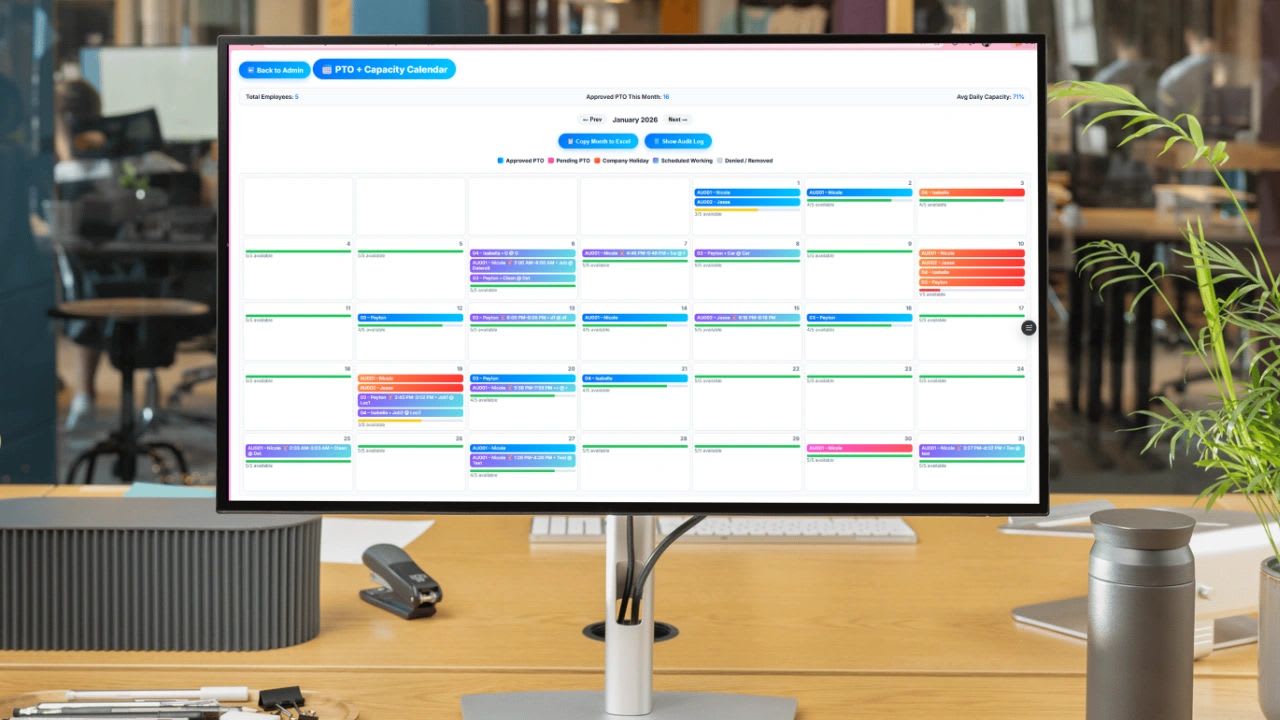
A weekly schedule tells someone what time to turn up on Tuesday. A monthly view tells you whether you have enough coverage across the whole month, which is the question you need answered before you start assigning shifts. Most operations want both: the monthly as a planning surface, the weekly as the thing you publish to the team.
Appointment scheduling is a different shape entirely
If you are booking clients rather than staffing shifts, the grid inverts. Rows become time slots, columns stay as days, and each cell holds a booking rather than a shift. It is the same spreadsheet skill applied to a different problem, which is why an employee schedule template feels wrong when you try to force appointments into it.
Google Sheets or Google Docs?
Plenty of people search for a schedule template in Google Docs, and it does work for a small fixed roster you print and pin up. For anything that changes, Sheets is the better tool for a practical reason: a Docs table has no formulas, so total hours do not add up on their own and nothing flags when someone is scheduled twice. If you already built one in Docs, copying it into Sheets takes a minute and you immediately get hour totals.
The same applies to Excel. Every template here copies into Excel exactly as it copies into Sheets. The difference is sharing, not structure: a Sheets link updates for everyone the moment you edit it, while an Excel file emailed round becomes four versions by Thursday.
How Much Notice the Law Requires
Publishing a schedule in advance is good practice everywhere and a legal requirement in some places, and the rules are more localized than most guidance suggests.
Oregon is the only state with a statewide predictive scheduling law. It requires 14 calendar days of written notice, and it applies to retail, hospitality and food service employers with at least 500 employees worldwide. Changes made inside that window trigger predictability pay: an extra hour at the regular rate for added time or an added shift, and half the regular rate for scheduled hours the employer removes or cancels.
Everywhere else the requirements are city ordinances rather than state law, which is the part that catches people out. Berkeley, Emeryville, San Francisco, Los Angeles and San Jose all have their own, and so do Chicago, Evanston, New York City, Philadelphia and Seattle. Most set 14 days, though New York City uses 72 hours for retail and 14 days for fast food. Coverage thresholds vary a lot by city, so check the ordinance where your people actually work rather than assuming your state sets the rule.
How to Use a Schedule Template the Right Way
Set a cadence and stick to it. Decide whether you publish weekly, biweekly, or monthly and then never miss it. Consistency builds trust with your team. When employees know the schedule will always be posted by Thursday for the following week, they stop asking and start planning.
Assign one owner. If anyone can edit the schedule, no one is accountable for it. One manager or operations lead owns it -- they are the person responsible for publishing it on time, communicating changes, and keeping it accurate. Others can provide input but the final schedule lives with one person.
Communicate changes explicitly. Even with real-time updates in Google Sheets, employees may not check the schedule after it is first published. When you make a change, notify the affected employees directly. A silent edit to a shared sheet is not a communication -- it is information that exists but has not been received.
Keep it clean. A cluttered schedule with too many colors, too many notes, and unnecessary fields is harder to read than a simple one. Include names, dates, and shift times. Add role or location only if your operation genuinely requires it. Every field you add is a field that someone has to fill in and someone else has to parse.
The Most Common Scheduling Mistakes
Last-minute scheduling. Building the schedule for the current week while the week is already starting puts everyone in reactive mode. Managers are constantly firefighting instead of managing, and employees feel like their time is not valued. The fix is structural: commit to publishing one full cycle ahead and treat it as a non-negotiable deadline.
No standard format. If each week's schedule looks different, your team has to relearn how to read it every time. Use the same template, the same column layout, and the same time format week after week. Familiarity reduces the time employees spend interpreting the schedule and reduces errors from misreading it.
Poor access. A schedule that employees cannot easily access is not a schedule -- it is information they do not have. A shared Google Sheet link that anyone can open from their phone eliminates the access problem entirely. The link should be pinned in whatever communication channel your team uses so it is always findable.
Ignoring feedback. Your team uses the schedule every day. If something consistently does not work -- a shift pattern that creates coverage gaps, a layout that is confusing for a specific role -- they will know before you do. Asking for feedback on the scheduling process and actually acting on it improves the system over time and signals that the schedule is designed to work for the team, not just the manager.
When to Move Beyond a Spreadsheet
A Google Sheets schedule works well until it does not. The signals that you have reached the limits are clear: you are managing more than 10 to 15 employees across multiple shifts or locations, changes require manually notifying people rather than flowing through a notification system, you cannot see availability versus scheduled hours at a glance, or the schedule itself takes more than an hour to build each week. At that point, Updoot's employee scheduling connects schedule to time tracking, payroll, and project assignment so the schedule is not a standalone document but a live part of how the operation runs.
Related Reading
2-2-3 Work Schedule Explained (With Template) →
Sources
The scheduling notice requirements above are drawn from the following sources. Predictive scheduling rules are mostly set at city level and thresholds vary, so confirm the ordinance that applies where your employees work before relying on any summary.
- Predictive Scheduling (Oregon Bureau of Labor and Industries)
- Predictive Work Schedule Laws: A City-By-City Guide (Paycor)