Start Free Trial
← Back to Blog

Google Sheets Formula List Cheat Sheet

Google Sheets formula list cheat sheet

The Most Common Google Sheets Formulas Chart
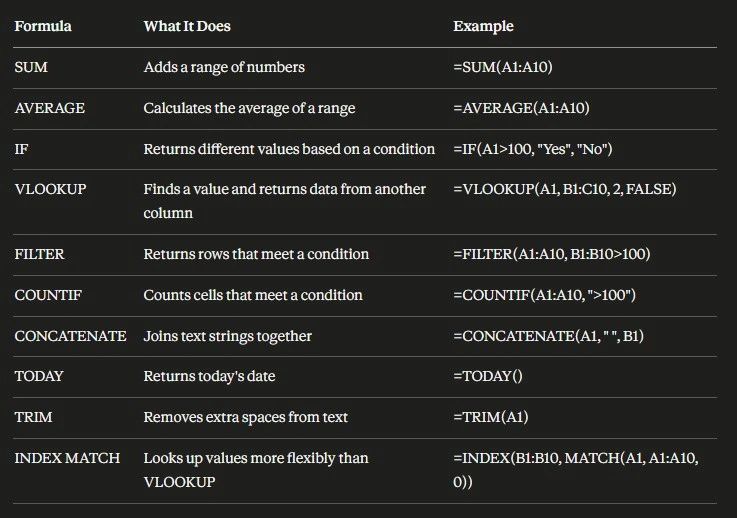
Google Sheets formulas reference chart

Google Sheets is more than just a simple spreadsheet tool, it's a powerful platform that can handle everything from basic data organization to complex financial analysis. Whether you're a beginner just starting out or a seasoned professional looking to sharpen your skills, mastering Google Sheets formulas can significantly enhance your productivity and data management capabilities.

Below are the essential Google Sheets formulas organized by category -- from basic arithmetic to advanced statistical calculations. Each includes the syntax and a plain-English explanation so you can start applying them immediately.

Good to know: Most formulas on this list also work in Excel with identical syntax. The exceptions are Google-specific functions like IMPORTRANGE, QUERY, and FILTER, which have no direct Excel equivalent.

Formulas by Category

Basic Arithmetic

SUM
Adds up all numbers in a range.=SUM(A1:A10)
AVERAGE
Returns the mean of a range.=AVERAGE(A1:A10)
MIN
Returns the smallest value in a range.=MIN(A1:A10)
MAX
Returns the largest value in a range.=MAX(A1:A10)
COUNT
Counts cells containing numbers only.=COUNT(A1:A10)
COUNTA
Counts all non-empty cells regardless of type.=COUNTA(A1:A10)

📄 Text Functions

CONCATENATE
Joins multiple text strings into one.=CONCATENATE(A1, " ", B1)
SPLIT
Splits text by a delimiter into separate cells.=SPLIT(A1, ",")
LEFT
Extracts characters from the left of a string.=LEFT(A1, 3)
RIGHT
Extracts characters from the right of a string.=RIGHT(A1, 4)
LEN
Returns the number of characters in a string.=LEN(A1)
SEARCH
Finds the position of a substring within text.=SEARCH("word", A1)
TRIM
Removes extra spaces from text.=TRIM(A1)
LOWER
Converts all text to lowercase.=LOWER(A1)
UPPER
Converts all text to uppercase.=UPPER(A1)

❓ Logical Functions

Returns one value if true, another if false.=IF(A1 > 100, "Yes", "No")
AND
Returns TRUE only if all conditions are true.=AND(A1 > 100, B1 < 50)
OR
Returns TRUE if any condition is true.=OR(A1 > 100, B1 < 50)
NOT
Reverses the logic of its argument.=NOT(A1 > 100)

🔍 Lookup Functions

Searches a column and returns a value from the same row in another column.=VLOOKUP(A1, B1:C10, 2, FALSE)
HLOOKUP
Searches a row and returns a value from the same column in another row.=HLOOKUP(A1, A1:J2, 2, FALSE)
INDEX
Returns the value at a specific row and column in a range.=INDEX(A1:C10, 2, 3)
MATCH
Returns the position of a value within a range.=MATCH("apple", A1:A10, 0)
FILTER
Returns rows that meet a condition. Google Sheets only.=FILTER(A1:A10, B1:B10 > 100)
QUERY
Runs SQL-style queries on spreadsheet data. Google Sheets only.=QUERY(A1:C10, "SELECT A, B WHERE C > 100", 1)

📅 Date and Time Functions

TODAY
Returns today's date, updates automatically.=TODAY()
NOW
Returns the current date and time.=NOW()
DATEDIF
Returns the difference between two dates in days, months, or years.=DATEDIF(A1, B1, "D")
EDATE
Returns a date a set number of months from a given date.=EDATE(A1, 1)
EOMONTH
Returns the last day of a month a set number of months away.=EOMONTH(A1, 1)
WEEKDAY
Returns the day of the week for a given date as a number.=WEEKDAY(A1, 1)

📈 Array Formulas

ARRAYFORMULA
Applies a formula to an entire range instead of a single cell.=ARRAYFORMULA(A1:A10 * B1:B10)
IMPORTRANGE
Imports a range from another Google Sheet. Google Sheets only.=IMPORTRANGE("spreadsheet_url", "Sheet1!A1:B10")
UNIQUE
Returns only unique values from a range, removing duplicates.=UNIQUE(A1:A10)

💶 Financial Functions

PMT
Calculates the periodic payment for a loan at constant rate and periods.=PMT(interest_rate, number_of_periods, present_value)
NPV
Calculates net present value of an investment based on periodic cash flows.=NPV(discount_rate, value1, [value2, ...])

📊 Statistical Functions

STDEV
Returns the standard deviation of a dataset.=STDEV(A1:A10)
VAR
Returns the variance of a dataset.=VAR(A1:A10)
PERCENTILE
Returns the value at the nth percentile of a dataset.=PERCENTILE(A1:A10, 0.9)
MEDIAN
Returns the middle value in a dataset.=MEDIAN(A1:A10)

This list covers a broad range of functionalities in Google Sheets and should serve as a handy reference for many common tasks. Most also work in Excel with identical syntax.

Frequently Asked Questions

What is the most useful Google Sheets formula?
SUM is the most used formula across all skill levels. For anyone working with data beyond basic addition, VLOOKUP and IF are the two formulas that unlock the most functionality and are worth learning early.
Do Google Sheets formulas work in Excel?
Most do. SUM, AVERAGE, IF, VLOOKUP, INDEX, MATCH, TRIM, LEFT, RIGHT, LEN, and most statistical and financial functions work identically in both. The main exceptions are Google-specific functions like IMPORTRANGE, QUERY, and FILTER, which either do not exist in Excel or work differently.
What is the difference between VLOOKUP and INDEX MATCH?
VLOOKUP searches left to right only and breaks if you insert a column. INDEX MATCH is more flexible, can look in any direction, and does not break when columns shift. For simple lookups VLOOKUP is fine. For anything more complex, INDEX MATCH is the better habit to build.
What is ARRAYFORMULA used for?
ARRAYFORMULA lets you apply a formula to an entire column or range at once instead of copying the formula into each row individually. It saves time and keeps your sheet cleaner when working with large datasets.
Can you use multiple formulas together in Google Sheets?
Yes, and this is where Google Sheets gets powerful. Nesting formulas inside each other, such as using IF inside SUM or MATCH inside INDEX, lets you build logic that handles complex real-world scenarios. Start simple and add layers as you get comfortable.
What is the difference between COUNT and COUNTA?
COUNT only counts cells that contain numbers. COUNTA counts any non-empty cell regardless of whether it contains a number, text, or a date. Use COUNT for numeric data and COUNTA when you need to count everything that has content.
What does QUERY do in Google Sheets?
QUERY lets you run database-style queries on your spreadsheet data using SQL-like syntax. It is one of the most powerful functions in Google Sheets for filtering, sorting, and aggregating data without building complex nested formulas. It has no direct equivalent in Excel.
Are Google Sheets formulas case sensitive?
Most are not. SUM, AVERAGE, IF, and most other functions treat uppercase and lowercase text the same way. The exception is EXACT, which is specifically designed to compare text with case sensitivity when you need it.

Related Reading

How to Use VLOOKUP in Excel and Google Sheets →

How to Create a Pivot Table in Excel and Google Sheets →

12 Essential Google Sheets Formulas You Need to Know →

How to Freeze a Row in Excel and Google Sheets →

How to Use Goal Seek in Google Sheets →

Ready to try Updoot free?

GPS time tracking, scheduling, HR, payroll, CRM, and more in one platform built for small business. $5/user/month, no credit card required.

Start Free Today